Few things are more frustrating than settling down to watch your favorite show and seeing your TV screen break up into blocks or distort with pixelation. If you’ve ever asked yourself, “Why is my TV pixelating?”, you’re not alone. Pixelation is a common issue that affects both free-to-air and cable TV, as well as streaming services.
In this guide we’ll explain why pixelation happens, what are the most common causes, and practical ways to fix it so you can enjoy a smooth and crystal-clear picture.
What Is Pixelation on TV?
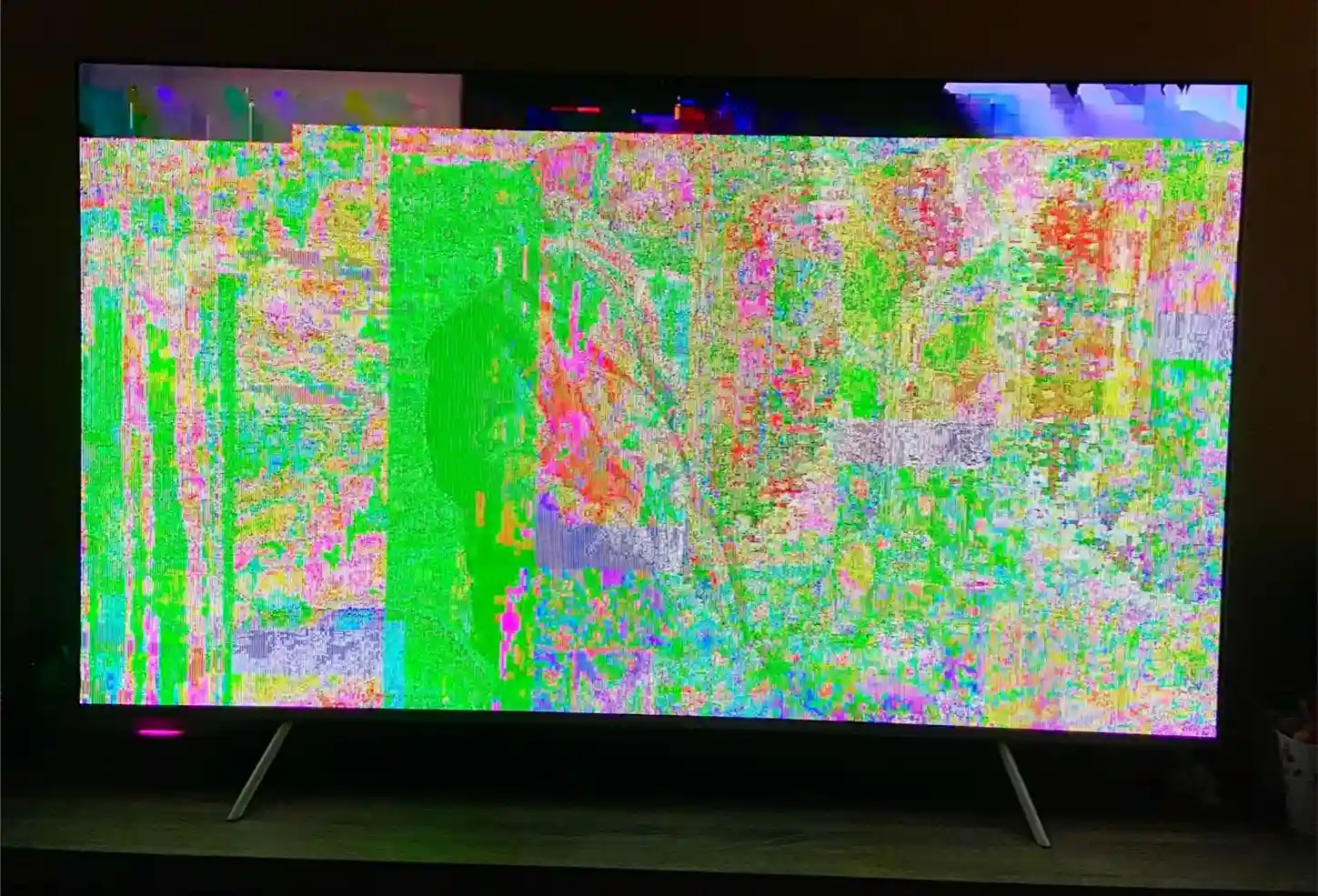
Pixelation occurs when the individual pixels that make up an image become visible or distorted, creating a blocky or blurry appearance. Unlike old analog TVs, which produced a snowy image when the signal was weak, digital TVs either display a clear picture or pixelate when the signal is interrupted.
Understanding the type of pixelation you’re experiencing helps determine whether it’s a minor fix you can handle yourself or a problem that requires a professional technician.
Common Causes of Pixelation on TV
There are multiple reasons why your TV may be pixelated. Here are the most common:
1. Weak or Fluctuating Signal
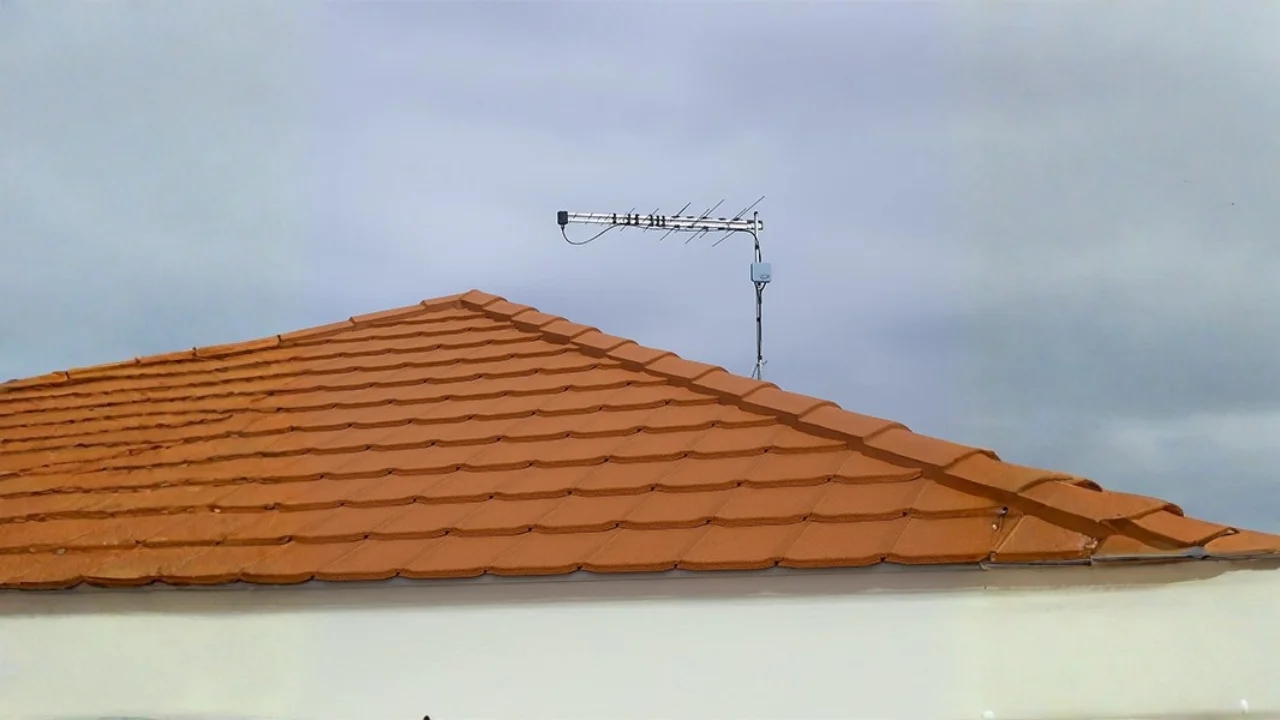
Poor reception is one of the most common reasons your TV may pixelate. This usually affects free-to-air TVs that rely on antennas to receive broadcast signals. When the signal coming from the tower is weak or inconsistent, your TV struggles to display a clear picture, resulting in blocky or distorted images.
Several factors can cause signal fluctuations. Distance from broadcast towers, bad weather such as heavy rain or strong winds, and physical obstacles like tall trees or nearby buildings can all interfere with the signal reaching your antenna. Even small misalignments in the antenna’s direction can lead to noticeable pixelation.
How to fix:
Start by adjusting your antenna’s position to improve reception. Raising it higher or moving it closer to a window can help your TV pick up a stronger signal and reduce pixelation. Sometimes a simple repositioning is all that’s needed to restore a clear picture.
If repositioning isn’t enough, consider upgrading your setup. Using a more powerful outdoor antenna or adding a signal amplifier can boost reception, especially in areas far from broadcast towers or with frequent weather disruptions. This ensures a more stable signal and a sharper viewing experience.
2. Loose, Damaged, or Low-Quality Cables
Pixelation can happen when the cables connecting your TV or set-top box are damaged or not properly secured. Coaxial or HDMI cables that are frayed, bent, or loosely plugged in may not carry the signal effectively, causing the image to break up into blocks or appear blurry. Even minor issues, like rusted connectors or loose wall ports, can interrupt the signal enough to create noticeable pixelation.
This problem can affect any type of TV, whether it’s free-to-air, cable, or streaming through a set-top box. Over time, cables can degrade, or connections can loosen from everyday movement, so regularly checking the condition of your cables can prevent sudden image problems and ensure a clearer, more stable picture.
How to fix:
Start by inspecting all connections between the wall, TV, and set-top box. Make sure each cable is securely plugged in, and check for signs of wear, fraying, or corrosion on the connectors. Tightening or reconnecting the cables can often resolve pixelation issues immediately.
If you notice any damaged or low-quality cables, replace them with high-quality, shielded coaxial or HDMI cables. Additionally, avoid running cables alongside power cords, as this can create electrical interference that affects the signal. Proper cable management and quality equipment help maintain a strong, uninterrupted picture.
3. Antenna Misalignment or Damage
Wind, storms, or even accidental bumps can shift your TV antenna out of alignment. When this happens, your antenna may no longer point toward the broadcast tower correctly, which can weaken the signal and cause pixelation on your screen. Even small misalignments can make a noticeable difference, especially for digital signals that are less forgiving than older analog broadcasts.
Damaged antennas can also struggle to pick up signals properly. Rust, broken elements, or worn-out mounts can reduce reception quality and lead to repeated picture breakup. Regularly inspecting your antenna and keeping it in good condition helps maintain a clear and stable signal.
How to fix:
Start by carefully realigning your antenna toward the nearest broadcast tower. You can use online coverage maps or a compass to ensure the best direction for signal reception. A slight adjustment can often restore the picture clarity without additional equipment.
Check your antenna for any physical damage, such as broken elements, corrosion, or loose mounts. If the problem persists, consider professional antenna testing. Technicians can measure signal strength precisely and adjust the antenna to maximize reception, ensuring consistent, high-quality TV viewing.
4. Interference from Electronics
Household electronics can sometimes interfere with your TV signal, causing pixelation or brief image drops. Devices like microwaves, Wi-Fi routers, cordless phones, LED lights, and even solar inverters can emit signals that disrupt your TV reception, especially if cables are running close to them.
How to fix:
Start by moving appliances and electronic devices away from your TV and antenna cables. Keeping a clear space around your connections can reduce interference and improve signal stability.
You can also use high-quality, shielded coaxial cables to help block out electrical interference. For a more precise approach, test your signal by turning off devices one at a time to identify which ones may be causing pixelation. Once identified, repositioning or isolating the device can restore a clear picture.
5. Outdated or Low-Performance Equipment
Older TVs, set-top boxes, or tuners may struggle to process modern digital signals properly. This can lead to persistent pixelation, freezing, or image breakup, even if your antenna or cables are working fine. Digital signals require equipment capable of handling higher resolution and faster data rates, which older devices sometimes cannot manage.
Internal hardware failures can also be a culprit. Components like a failing tuner or a worn-out TV display can cause repeated pixelation on all channels, making it difficult to enjoy a smooth viewing experience. Identifying whether your equipment is the issue is key to a long-term solution.
How to fix:
Consider upgrading to a newer digital-ready TV, tuner, or set-top box. Modern devices are designed to handle high-definition signals, improve processing speed, and reduce pixelation issues. Investing in updated equipment often provides the clearest and most reliable picture.
You can also test your current TV by connecting it to a different antenna, cable, or source. If pixelation disappears on another setup, it confirms your old hardware is causing the problem. This helps you pinpoint the issue before making a purchase or calling a technician.
6. Software or Firmware Issues
Smart TVs and set-top boxes rely on software to decode digital signals and display your favorite shows. When this software is outdated or experiences glitches, it can cause pixelation, freezing, or lag on the screen. Even small bugs in apps or the TV’s operating system can affect picture quality.
These issues can appear intermittently, making it seem like your signal or cables are at fault. Regularly updating your devices and keeping software current is essential to prevent these kinds of digital disruptions and maintain smooth, clear viewing.
How to fix:
Start by checking for system updates on your TV, set-top box, or streaming device. Manufacturers often release updates to fix bugs, improve compatibility, and enhance signal processing. Installing these updates can resolve pixelation caused by outdated software.
After updating, restart your TV and any connected boxes to refresh the system. This simple step clears temporary glitches, resets connections, and often restores a stable, block-free picture without needing further troubleshooting.
7. Pixelation on Cable TV or Streaming Services
Pixelation isn’t just limited to free-to-air TV. Cable TV channels and streaming platforms can also display blocky or distorted images, especially when content is compressed to save bandwidth. Poor internet connectivity or network congestion can make the picture break up, freeze, or appear blurry during streaming.
This issue can affect any streaming device, including smart TVs, set-top boxes, or streaming sticks. Even if your cable signal is strong, interruptions in your internet connection or overloaded networks can cause noticeable pixelation, particularly during high-definition or 4K content.
How to fix:
First, make sure your internet speed meets the minimum requirements for the service you’re using. High-definition streaming generally requires at least 15 Mbps, while 4K content may need 25 Mbps or more. Checking your speed can confirm whether slow connectivity is the cause.
For more stable streaming, use a wired Ethernet connection instead of relying on Wi-Fi, which can be prone to interference. Additionally, close any background apps or other devices that might be using bandwidth. This ensures your TV or streaming device receives the full network speed for a clear, uninterrupted picture.
8. Channel-Specific Pixelation
Sometimes, pixelation happens only on specific channels while others remain clear. This usually points to weaker broadcast strength, a frequency mismatch, or temporary interference affecting those particular channels.
How to fix:
Start by rescanning channels on your TV. This ensures your TV is tuned to the correct frequencies and can often resolve pixelation on problem channels without additional equipment.
Check whether other TVs in your home experience the same issue. If multiple TVs show pixelation on the same channels, the problem may require professional tuning or an antenna adjustment to boost signal strength and ensure consistent picture quality across all devices.
If your channel 7 is not working properly on your tv, read our guide Channel 7 Not Working? In this guide we have explained how you can fix your channel 7 not working issue.
Quick Troubleshooting Checklist
Here is the small checklist to fix the pixelating issue:
- Check all cable connections (HDMI, coax, wall ports).
- Restart TV, set-top box, and modem.
- Update TV firmware and apps.
- Reposition antenna or use a signal amplifier.
- Eliminate nearby electronic interference.
- Rescan channels for correct tuning.
- Test streaming devices with wired connection.
If pixelation persists after these steps, it’s time to call a professional technician.
When to Call a Professional
Persistent pixelation can signal deeper issues, such as:
- Internal tuner or hardware faults
- Antenna cable damage inside walls
- Signal interference from nearby structures
- Complex streaming or network issues
Borderless Solutions offers expert TV antenna installation, digital antenna installation and antenna repair. Our technicians ensure your TV receives the best possible signal, giving you a crystal-clear picture every time.
Final Thoughts
Pixelation on your TV can happen for a variety of reasons, from weak signals and damaged cables to outdated equipment or software issues. By understanding the causes and following practical troubleshooting steps, most pixelation problems can be fixed quickly.
For lasting results and professional-grade clarity trust Borderless Solutions to inspect, test, and repair your TV setup. Our team will ensure smooth, uninterrupted viewing on every channel and streaming app. Our services are fast, affordable, and licensed, and we deliver crystal-clear digital TV reception every time across Melbourne. Just contact us today and get a free quote.
FAQs
Why is my TV pixelated on some channels only?
Those channels may have weaker broadcast strength, frequency mismatch, or antenna alignment issues.
What causes pixelation on cable TV?
Cable pixelation is usually due to loose/damaged cables, splitter issues, or compression from the provider.
How do I stop pixelation on TV?
Check connections, adjust antenna, eliminate interference, update software, and ensure good internet speed for streaming.
Can weather affect TV pixelation?
Yes. Heavy rain, wind, and heat can reduce signal quality for antennas, causing temporary pixelation.
Should I call a technician for persistent pixelation?
Absolutely. Professionals can measure signal strength, realign antennas, and repair cabling for lasting results.